
How to Delay the Introduction of Smartphones
Most of the arguments for children having smartphones, such as knowing where a child is at all times or being able to reach them in an emergency, can be easily solved with a flip phone, watch phone or kid-safe restricted phone that looks like a smartphone. But there are two arguments that can’t be solved with these devices:
Children wanting to connect with their friends on social media
Parents wanting their children to learn important life skills required of them in a technology driven world.
Sentinel Computers has designed the LaunchPad personal computer to help.
So how can we safely introduce children to social media to stay connected with friends and learn important life skills before adulthood?
Staged Exposure With Parental Supervision
This involves a process that prepares the child for access to social media followed by distinct stages of increasingly independent and private use. This process ends with an older teen or adult with the experience, skills and life success momentum to be a safe and productive smartphone user. This process is simple but does take preparation and effort. Slow, gradual exposure with hands on monitoring can reduce risk. First, parents must evaluate the child’s readiness at each stage and balance that against the child’s wants and desires. Life skills cannot be learned simply from books, stern lectures or even a digital citizenship class. Life skills are ultimately learned through living.
The Sentinel LaunchPad was designed to help keep children safe and make this effort easier on parents.
Preparation
Before accessing any social media, even with parental supervision, the child ideally would receive some form of digital safety and citizenship education and understand parental expectations regarding screen use. You also cannot simply wait until adulthood for these skills to be gained. You would not (hopefully) simply wait until your child turns 18 and then give them the car keys without drivers training and an earned driver’s license.
There is no government regulated “social media license”, but there are digital citizenship courses for children and teens. To ensure parental expectations are clear to a child, There are family media agreements that parents can present and discuss with their child.
One expectation that should be made clear from the beginning is that time on screens for entertainment, including social media, will be automatically limited and monitored for safety each day. Although many of their friends spend hours each day on social media, that will not be the case for them. In addition, use will not be allowed each day (with some exceptions) until schoolwork and other responsibilities are met.
Then the child would still need to go on social media to practice while being supervised and monitored (just like driver’s training). Then after sufficient time and gains in maturity, the child would be free to go out on their own.
Stage 1: Social Media access with parent’s 100%
direct in-person involvement
The child and parent setup an account together and the parent has full access to the account. If the social media account supports parental controls, the parent can choose to set that up. The LaunchPad can be setup so the child is allowed access when the parent logs in to a Sentinel User that has setup to enable Social Media with use limits and at a preset time of day. The parent and child sit together and view, post and discuss what is seen online. The parent can advise the child regarding observed online postings and activities. It is expected that this time is only after homework, chores and other responsibilities are met for the day.
Stage 2: Social Media access with parent remote monitoring
This stage allows the child to access social media for a set usage time limit (see recommendations) during Entertainment Desktop time only after school work, chores and other responsibilities are completed. Parents are not with the child in-person (even if in the same residence) but remotely viewing screen images while they are on social media. to get a sense of online communication from captured screen images while they are on social media. Child is aware their screen and account is being monitored. It is expected that parent plays an active role and reviews screen images every day to ensure their child is safe. Viewing still screen images is far more efficient for parents then physically looking over their shoulder. In addition it is giving the child a sense of autonomy as a test of their impulsivity and decision making skills. As the child is getting more familiar and engaged in Social Media with friends, increase the limit to 30 minutes. Children may naturally want more time than 30 minutes however parents must explain that these limits mean that their time to connect should be meaningful and not just a way to kill time.
Child should agree to speak with parent regarding problematic encounters. This is an important part of practical learning. Parent must not overreact or punish the child for mistakes made. Most critical element is maintaining the parent child relationship with trust and respect. Ask the child how they would do thing differently next time.
Parent should login to the child’s actual social media account (from own device) each day to fully review posted content. Parents should have regular discussions with child about social media interactions and help their child learn communication and problem solving techniques. It is critical that this line of communication between parent and child be open and honest.
Stage 3: Parent viewing screen images daily but
only limited Social Media account monitoring
Again, viewing screen images should not take long as their are only at most 10 images for 30 minutes of activity. This stage is the same as Stage 2 except that screen shots are reviewed daily and the actual Social Media account is only accessed on occasion, when the parent senses some issues or when the child asks for help. Again the child is instructed to send screen shot images of problematic encounters to the parent.
Stage 4: Parent viewing screen images on occasion with rare,
random checks of child’s social media accounts
Provided the child is demonstrating responsible behavior and is doing well in school and socially, you may be able to reduce the amount of online supervision. Random checks of their social media accounts can help keep things in check. Having regular time to discuss your child’s world will help maintain the level of transparency. Do not expect your child to tell you everything and make sure at this stage you do not overreact to your child’s struggles. Remember that the goal of this process if for them to gain life skills for their ultimate independence.
Stage 5: No periodic screen capture and only random
checks of child’s social media accounts. Remove time limits
on Entertainment Modes including Daily Enable
At this stage they have demonstrated a significant amount of success in self regulation and control. This stage involves turning off periodic screen capture and only random access to their social media account(s). You can still access on-demand image captures to ensure you have made the right choice to move to this stage. Also remove limits on Entertainment time and remove Entertainment Daily Enable. If problems do emerge and your child is not able to self regulate, you may need to return to Stage 4. Since your child is aware that self regulation is key to their independence and privacy, this will hopefully encourage them to self regulate.
Stage 6: Adulthood - no ongoing monitoring, full
LaunchPad privacy and no limits
Provided your adult child is mature enough and no problems have emerged, parent ends all monitoring of child’s screen images or social media accounts. If parents are supporting adult child in academics (i.e. college) parents must still require accountability with child regularly (weekly to start) showing their online grades and school activity.
IMPORTANT - Mental health issues, major changes in academic performance, friendships, attire, piercings, body art, drug or alcohol use may suggest reverting back to prior stages with child’s full awareness of the change. Note that Privacy status is always displayed on the front panel LCD during logins.
Questions and Answers
Q - What if my child says they need a smartphone to turn in assignments?
A - If the phone is needed simply for the camera, get them a portable digital camera. If it is to take pictures of written assignments to submit, get them a low cost Document Camera/Webcam for the Sentinel. If they need it for a specific App, verify this with the teacher.
Q - What if my child needs to access Social Media just to check on things first thing in the morning?
A - If this is just for socializing, don’t allow it. If it is to check with a classmate on an assignment, you can easily allow a one time override for them to access Social Media. If this is regular thing, setup a separate user (“Before School”) with Social Media enabled, set the time range to match the morning schedule and set the daily limit to 4-6 minutes. They will then have a short time to access social media in the morning. Always enable periodic screen capture to monitor their use.
Q - What if my child says they need to listen to music to help them focus while studying and doing schoolwork?
A - The LaunchPad has a features in direct support of this. The Study Desktop+Focus mode provides an audio source from a web app to help with focus. Sites include brain.fm (subscription required) and other audio and video streaming sites (paid and free). Parents can set the preset or the parent can allow the child to set it for themselves from a limited collection of sites. Other features in support of improved concentration include Screen and Meditation Breaks with settings in support of the Pomodoro Technique.
Q - What if my child says they need to listen to music or streaming audio content to help them fall asleep at night?
A - The LaunchPad has the Bedtime Sleep Mode feature in direct support of this. Sleep Mode allows up to two 30 minute audio sessions each day. Audio can be provided by mp3 files or Focus Web Apps from the Meditation mode library. Parents can provide the audio source or allow the child to select their own.
Q - What if my child needs to check in on Discord regarding school assignments?
A - If this is a regular thing, create a Custom Guided Instruction Mode Site for the Discord channel or server. During Education Mode they can log into Guided Instruction Mode and access the specific Discord page. Refer to the Sentinel LaunchPad Owner’s Guide for mode information on how this is done. Verify the settings to make sure access is limited to the school channel.
Q - Why can’t I just get my child a smartphone and use parental controls to do what you recommend?
A - If you are fairly technical, willing to purchase third party parental control software and have plenty of free time, you might have just found a new past time. Just a warning, the “Beat the Parents Game” is rigged and you will need to remain diligent to keep your children safe. A Sentinel LaunchPad system with keyboard, mouse and display is less expensive than many of the most popular smartphones on the market today. No new Apps, VPNs, or child trickery to worry about.
Got More Questions? We Have Answers
Check out our Contacts page and reach out with your questions or comments. Thanks

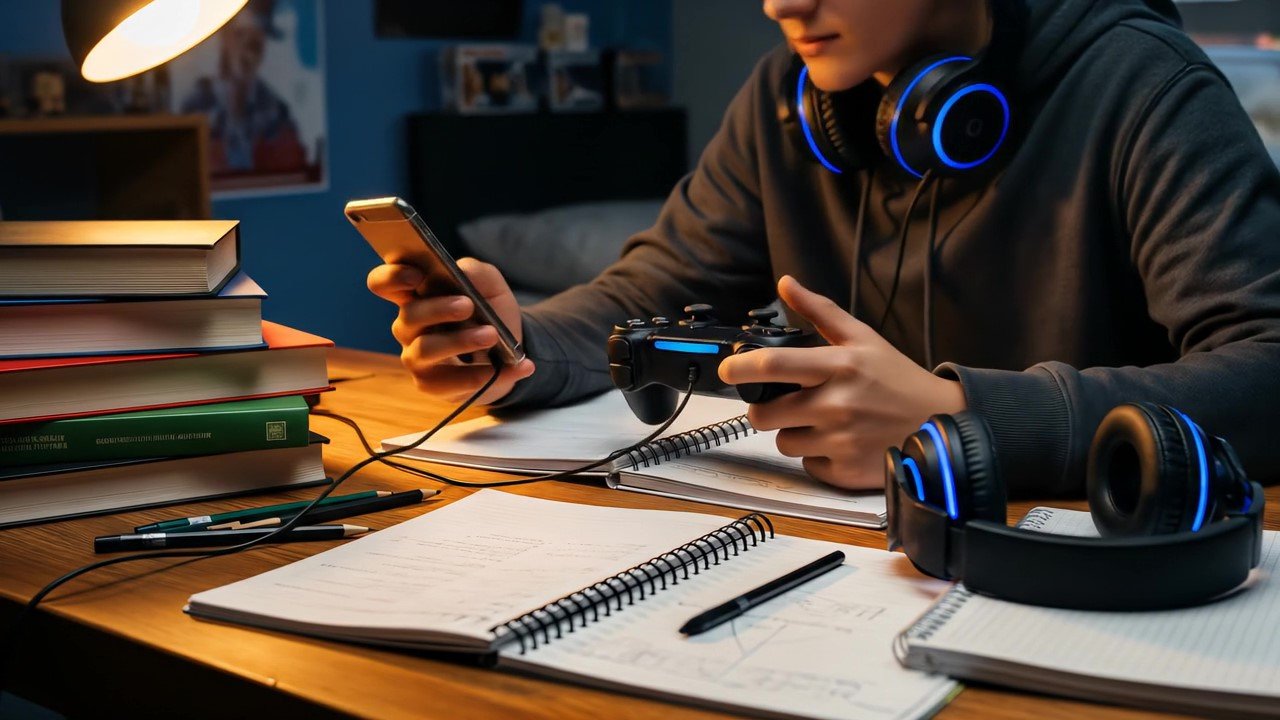
Research is emerging showing the risks to our youth from excess screen time, gaming addiction and social media. But this is easier said than done for parents. Children want them and their friends have them. Some have given up and are saying “the genie is out of the bottle and can’t be put back”. Good news! Check out putgenieback.org for encouragement that not only can the genie be put back, but for the sake of our children, he must be put back!
LaunchPad Tip: Guided Instruction Mode offers Digital Citizenship and Safety courses for your child to complete.
LaunchPad Tip: Explain to your child that the LaunchPad has strict time limits and through screen image capture, you will be able to “look over their shoulder” to see what they are doing while they are logged in.
LaunchPad Tip: When users are added to the system, Easy Setup automatically sets use times and limits for each mode based on the age of the child, their schedule and professional recommendations. For this process, disable Social Media for users at State 1.
LaunchPad Tip: Locate the LaunchPad in a convenient location so both of you can sit together. This is easy if the LaunchPad is connected to the home big screen TV or in the family room. For Stage 1, the child account (i.e. User 1) need not have Social Media Enabled. A separate “Parent” user can be created with Social Media enabled.
LaunchPad Tip: For Stage 2 enable Entertainment Daily Enable to ensure homework and other responsibilities are met. Enable Social Media and set time limit to 15 minutes to start. Turn on Social Media Notification so you will be notified by email when your child logs into Social Media mode.
LaunchPad Tip: Guided Instruction and Exploration modes provide a good alternative use of screen time.
LaunchPad Tip: Explain to your child how they can send you a screen image easily at any time by pressing and holding the Reset button. Have them do it as a test. From the Sentinel Web portal, send them a message remotely and confirm they received it.
LaunchPad Tip: At stage 5, parents are no longer recording and viewing periodic screen images and limits are removed for Entertainment modes. They should continue to refer to Usage Logs to see what Modes the child is logging into and how much time is spent. If use is appearing unregulated and/or excess, parents should have a discussion with the child and return to Stage 4 with periodic screen images and limits.
“Multitasking” is not helpful to children in completing homework (researchers say)!